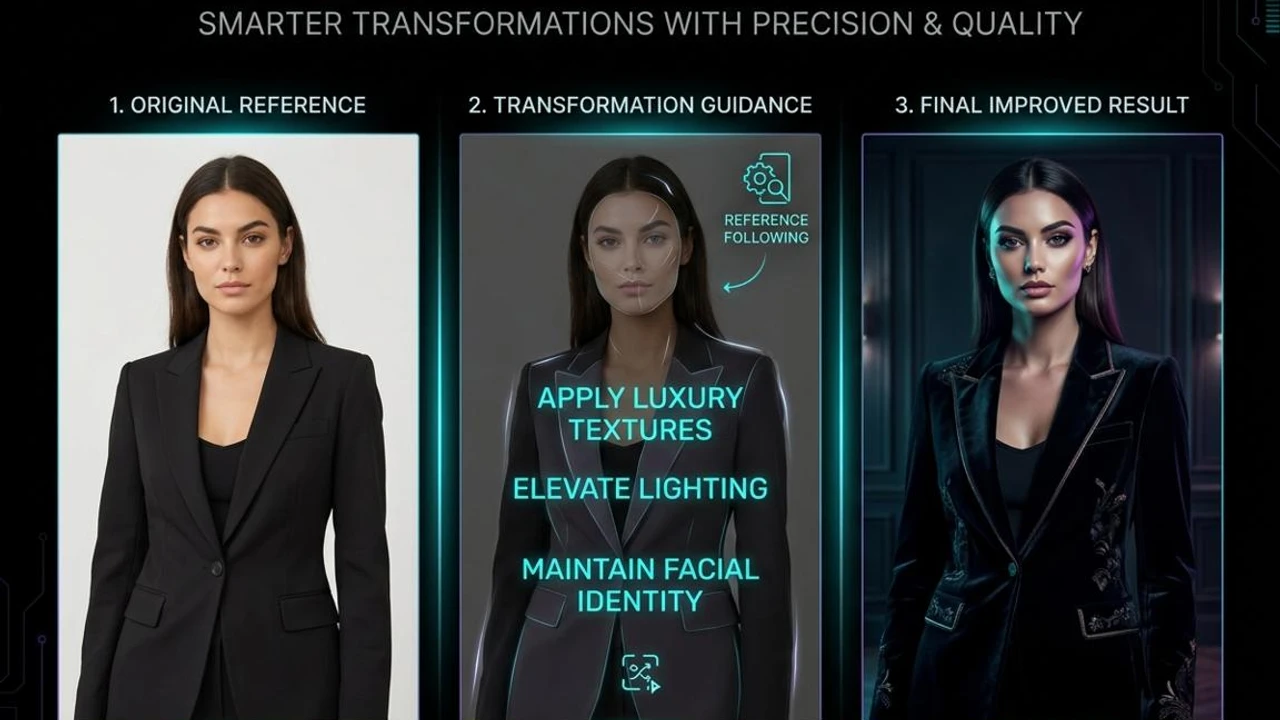
In This Curated Masterclass
Creating beautiful, high-fidelity photographs doesn't require thousands of dollars in camera gear, elaborate studio rentals, or years of Photoshop mastery. With modern generative AI tools and the right editing prompts, you can transform an ordinary everyday photograph into an evocative, culturally rich visual masterpiece.
For example, you can turn a simple home selfie into a majestic traditional Indian festival portrait, create a cinematic couple photoshoot on a fairy-lit rooftop, design an aesthetic birthday celebration, or place yourself in an authentic royal heritage courtyard.
However, getting a truly believable result is rarely as simple as copying and pasting a generic one-liner prompt. Many creators encounter frustrating challenges: the generated person looks like a stranger, real skin textures are wiped away into wax, fingers appear distorted, clothing looks painted on, or the atmosphere feels completely artificial.
That is why understanding how to structure and apply AI prompts is essential. PromptAura exists to help creators discover tested, copy-ready AI photo editing prompts for different occasions, aesthetic styles, and creative concepts. Instead of starting with a blank text box, you can explore a visual concept, copy its prompt blueprint, and seamlessly adapt it to your own photographs.
📌 Before You Start: What Are PromptAura Prompts & How the Workflow Works
PromptAura prompts are engineered natural-language blueprints designed to instruct multimodal AI models on how to edit existing images without destroying the subject's authentic identity. The fundamental 7-step process is:
- Browse: Select an aesthetic idea or photoshoot concept from PromptAura.
- Copy: Tap the 1-click “Copy Prompt” button.
- Select Tool: Open a multimodal AI image editing platform (such as Google Gemini).
- Upload: Attach your sharp, unfiltered reference photo.
- Paste & Customize: Insert the prompt, optionally adjusting clothing colours or lighting.
- Evaluate: Review the result for facial accuracy, fingers, and fabric realism.
- Refine: Use conversational micro-prompts if any minor adjustment is needed.
Step 1: Choosing Your AI Image Generation & Editing Platform
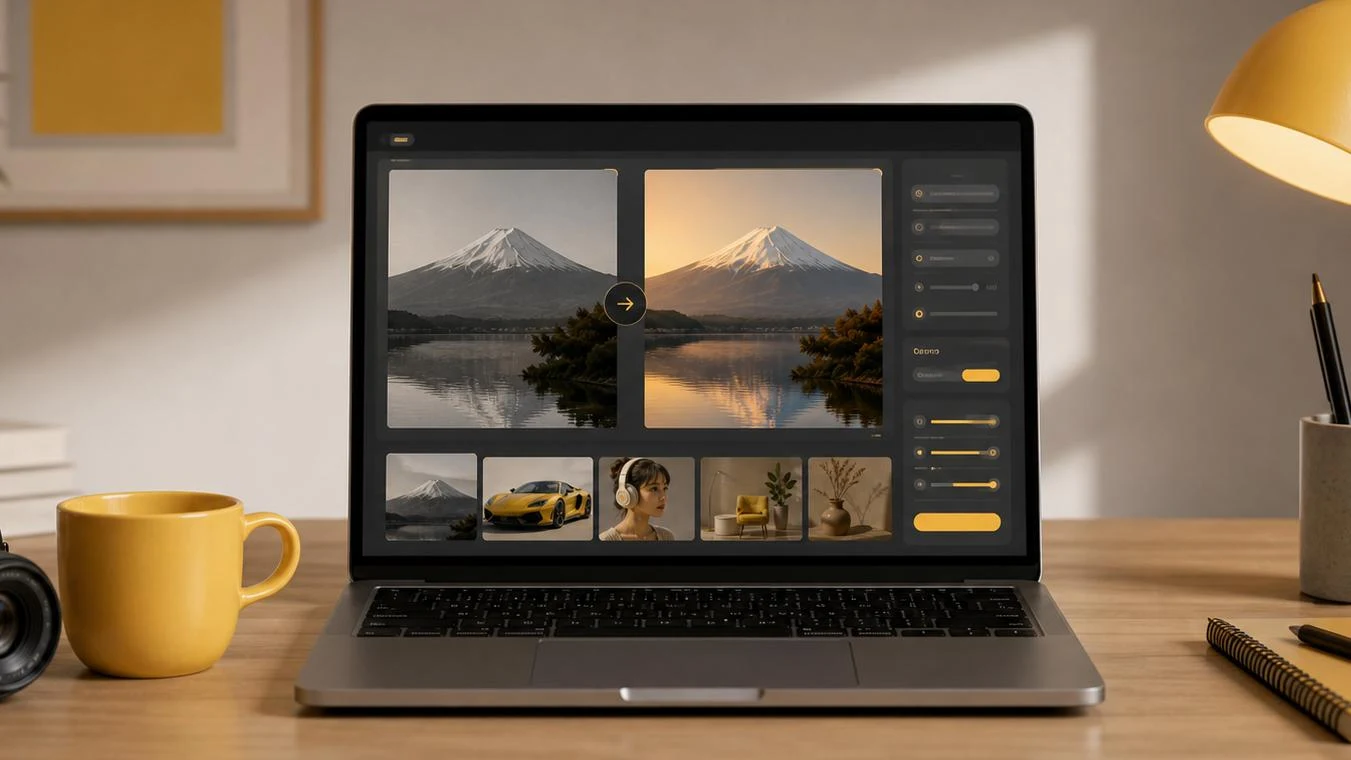
Comparing multimodal models: Google Gemini, Microsoft Copilot, ChatGPT Plus, and Midjourney v6.
Choosing the right tool depends entirely on your objective: are you editing an existing selfie (reference-based), or creating a brand new concept from scratch (text-to-image)?
Google Gemini
One of the most versatile tools for reference-based editing. Gemini allows you to upload a selfie, provide conversational instructions, and preserve real facial identity across iterative prompts in the same chat thread.
Microsoft Copilot
Excellent for concept generation, artistic festival scenes, and atmospheric lighting from pure text descriptions. Fast and widely accessible.
ChatGPT Plus
Exceptional prompt comprehension and complex narrative scene building. Useful for conceptual storyboarding and creative portrait compositions.
Midjourney v6 & Flux.1
Industry leaders in ultra-realistic cinematic lighting, fabric textures, and bokeh. Require external workflows or parameter flags for character consistency.
AI Photo Editing Platforms Comparison Matrix
| AI Platform | Reference Photo Support | Face Preservation | Ease of Use | Best Use Case |
|---|---|---|---|---|
| Google Gemini | Direct upload + chat | High (with strict prompts) | Very Easy (Chat) | Personal photo transformation, festival edits |
| Microsoft Copilot | Limited reference support | Moderate | Very Easy | Creative concepts, holiday scenes from scratch |
| ChatGPT Plus | Multimodal upload | Moderate to High | Easy | Creative storytelling, complex compositions |
| Midjourney v6 | Via parameter flags (--cref) | High (with character weights) | Moderate (Discord/Web) | High-fashion editorial, hyper-realistic aesthetics |
| Flux.1 (Schnell / Dev) | Via LoRA / Inpainting | Very High (with trained weights) | Advanced | Photorealistic typography and photorealistic hands |
Step 2: The 4 Pillars of Real Face Preservation
Pillars of biometric preservation: Reference quality, hierarchical prompts, negative boundaries, and aspect ratios.
When an AI model generates a new portrait from an uploaded photo, it tries to balance your facial features with the new outfit and lighting. If your prompt does not give clear instructions, the AI defaults to a generic stock model. To ensure your real face is recognizable, build your prompt around four non-negotiable pillars:
Pillar 1: Clean, Neutral Reference Photography
The quality of the AI output directly mirrors your input. Use an unedited, sharp, front-facing selfie taken in natural daylight. Never use heavily filtered Snapchat or Instagram photos, extreme low-angle shots, or images where sunglasses or heavy shadows obscure the eyes.
Pillar 2: Strict Hierarchical Prompt Ordering
Multimodal models prioritize tokens placed at the beginning of the prompt. Always declare facial preservation in the very first sentence before mentioning clothing, jewelry, or backgrounds. State: “Preserve the exact real identity, facial geometry, eye shape, nose, lips, natural skin tone, and body proportions of the uploaded reference photo.”
Pillar 3: Explicit Negative Constraints & Anti-Airbrush Directives
Generative models often over-smooth skin, creating an artificial “plastic doll” look. Always include negative rules: “Do not replace the face with a generic model. No plastic skin smoothing, no waxy airbrushing, no cartoon blur. Preserve authentic micro-pores and realistic facial textures.”
Pillar 4: Aspect Ratio & Compositional Framing
Forcing a landscape crop on a vertical selfie squashes facial features and causes distortion. Match your prompt framing to your reference image. For Instagram, specify 4:5 Vertical Portrait (1080 × 1350 px) or 9:16 Full Screen for Reels and Stories.
Step 3: Reference Image Quality Standards (Do's & Don'ts)
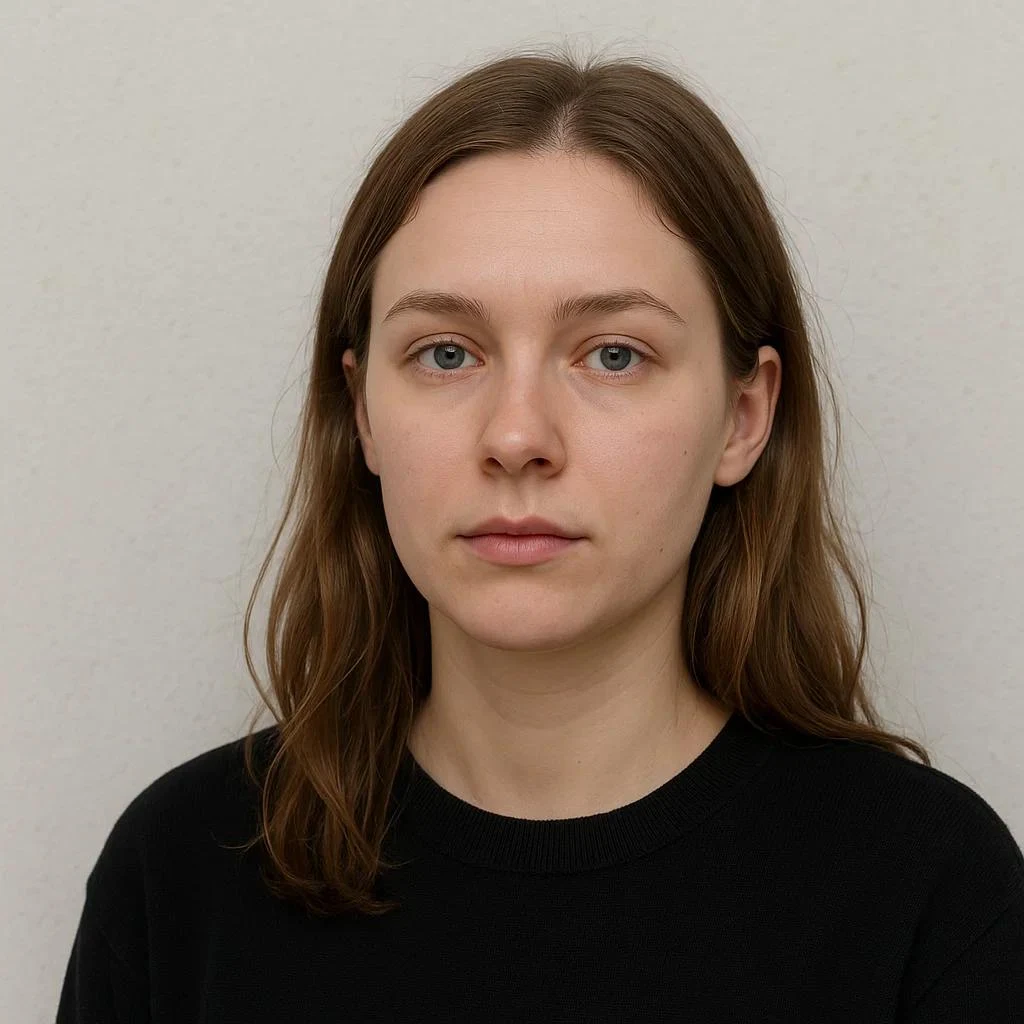
Ideal reference photo criteria: Clear lighting, visible eyes, and neutral, unmanipulated skin.
Ideal Reference Photos (Do This)
- Natural Daytime Lighting: Soft, indirect daylight facing a window.
- Eye-Level Portrait: Direct camera angle showing both eyes, nose, and jawline clearly.
- Zero Filters: Pure, unedited raw capture without skin softening filters.
- Sharp Focus: High-resolution image where facial features are crisp and in focus.
Photos to Avoid (Don't Do This)
- Heavy Social Filters: Snapchat, Instagram, or beauty app smoothers.
- Severe Angles: Overhead birds-eye or extreme low under-chin perspectives.
- Facial Obstructions: Dark sunglasses, hats covering eyebrows, or hair across eyes.
- Pixelated Low-Res: Blurry screenshots or heavily compressed social thumbnails.
Step 4: Anatomy of a Flawless AI Photo Editing Prompt
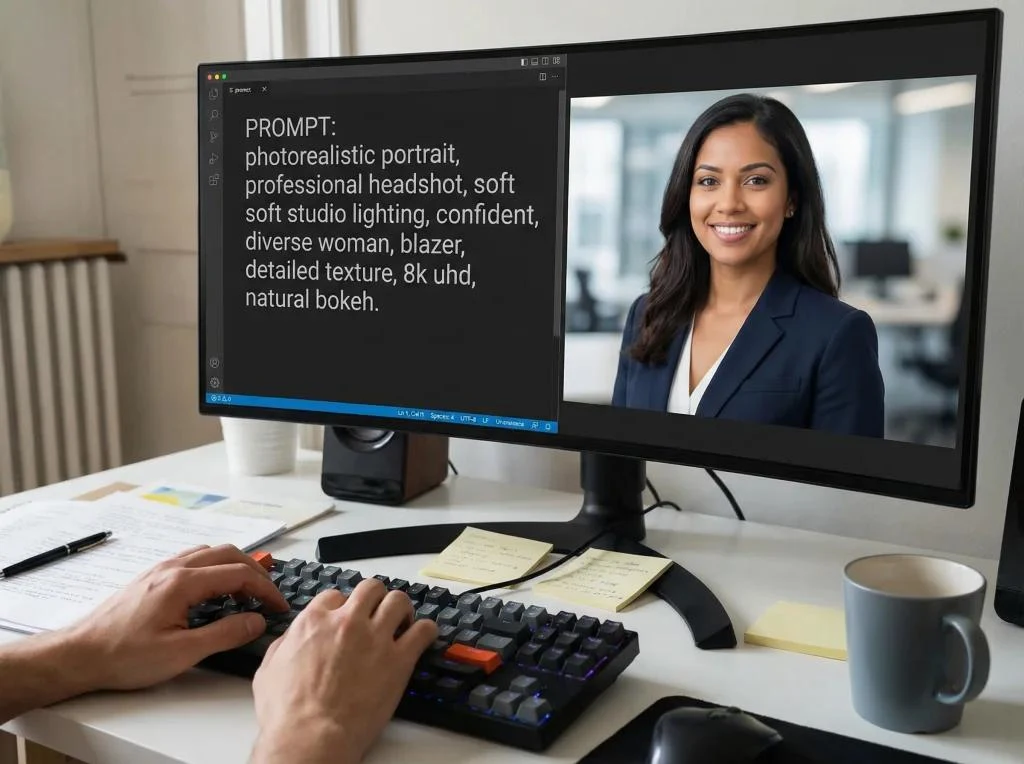
Structural breakdown: Action directive, identity preservation, styling, environment, and camera aesthetics.
Every prompt on PromptAura follows a precise 6-part anatomical structure that maximizes clarity for neural networks:
Explicitly instructs the AI to edit the uploaded reference photograph rather than creating a random fantasy image from scratch (e.g., “Edit my uploaded reference photograph into a photorealistic festive portrait...”).
Names the subject, commands exact retention of facial geometry, eye shape, nose, lips, natural skin tone, and body proportions.
Specifies authentic fabric drape (raw silk, organza, velvet), embroidery details (zari, threadwork), and tasteful cultural accessories without overwhelming the subject.
Describes authentic architectural or festive elements: glowing clay diyas, marigold garlands, warm fairy-light bokeh, or heritage courtyards.
Specifies 85mm full-frame portrait lens, f/2.0 aperture, soft natural key light, authentic skin pores, and 4:5 vertical Instagram composition.
Explicitly prevents common AI blunders: no face replacement, no plastic skin smoothing, no distorted hands, no watermarks, no cartoon textures.
4 Reusable Copy-Paste Prompt Blueprints
Copy these pre-calibrated master prompts and paste them directly into Google Gemini or your chosen multimodal AI editor. Replace bracketed text with your preferred colours, outfits, or settings.
Universal Solo Traditional & Festive Portrait Blueprint
Use this baseline blueprint whenever you want to place yourself in a traditional outfit, formal attire, or cultural setting while locking your exact facial identity.
Edit my uploaded reference photograph into a highly realistic professional photograph.

REFERENCE IDENTITY: Use the uploaded photograph as the primary reference. Preserve the person's recognizable facial identity, original facial proportions, eye shape, nose, lips, natural skin tone, age appearance and distinctive features. Do not replace the person with a generic model, and do not alter their identifiable appearance.

SUBJECT STYLING: Dress the subject in [Describe Clothing, e.g., an elegant emerald green silk kurta with subtle gold embroidery / a contemporary tailored navy blazer]. Natural, relaxed posture, facing the camera with a gentle, confident expression.

ENVIRONMENT & BACKGROUND: Set the scene in [Describe Location, e.g., a warm, softly lit courtyard with terracotta potted plants and distant warm lights / a modern minimalist loft with soft window light].

CAMERA & LIGHTING: Shot on 85mm portrait lens, f/2.0 aperture, soft natural daylight with subtle golden rim lighting. Visible skin texture, natural pores, realistic fabric folds and authentic reflections.

NEGATIVE CONSTRAINTS: Do not alter facial structure, no plastic waxy skin, no airbrushed blur, no extra fingers, no distorted hands, no watermark, no logo, no cartoon rendering.
Dual Identity Couple Photoshoot Blueprint (Two Uploaded Photos)
Prevents the AI from accidentally blending two partners into looking like siblings or morphing them into generic models. Upload separate reference images for male and female subjects.
Edit our two uploaded reference photographs into a photorealistic, romantic Indian festive photoshoot.

REFERENCE IDENTITIES:
- Female Subject: Refer to female_reference.jpg. Preserve her exact facial geometry, natural complexion, eye structure, and smile.
- Male Subject: Refer to male_reference.jpg. Preserve his exact facial bone structure, skin tone, grooming, and height proportion.
- Do NOT swap, combine, or homogenize their facial features. Both subjects must remain immediately recognizable.

SCENE & POSING: Show the couple standing together on a heritage terrace overlooking a softly lit festive skyline. The man stands slightly behind, hands gently resting by her waist, while both look lovingly towards the camera.

FESTIVE ATTIRE:
- Female: Deep crimson red silk saree with antique zari border and delicate temple jewellery.
- Male: Royal ivory raw-silk bandhgala kurta with subtle gold buttons.

LIGHTING & ATMOSPHERE: Golden hour twilight with glowing clay diyas and warm string fairy lights creating soft bokeh in the background. Full-frame DSLR capture, 85mm lens, f/2.2 aperture, authentic skin pores, sharp focus on faces, natural fabric draping.

NEGATIVE DIRECTIVES: No distorted hands, no extra limbs, no face replacement, no plastic skin smoothing, no cartoon saturation, no artificial blur.
female_reference.jpg and male_reference.jpg before uploading to help the AI map each face correctly.Facial Drift Correction & Likeness Recovery Re-Prompt
If your first generation has the right outfit and lighting but the face drifted slightly, do NOT start a new chat. Paste this follow-up prompt directly in the same conversation thread:
Refine the previously generated image to increase facial accuracy compared to my original reference photo:

1. Restore the original reference person's exact eye shape, eyelid fold, and eyebrow arch.
2. Slightly reduce the jawline sharpness so it matches the reference subject's natural face shape.
3. Bring back authentic skin texture with visible micro-pores and natural skin undertones; remove any lingering waxy or airbrushed finish.
4. Keep the exact same festive outfit, lighting, and background untouched.
5. Strictly do not swap the identity or introduce a generic AI model.
Hand & Finger Anatomy Repair (Fixing Distorted Diyas & Bangles)
When an otherwise gorgeous festive photograph has a distorted thumb, extra finger, or melted bangle, use this targeted repair directive:
Repair the hands and fingers in the previously generated image while leaving the face, clothing, and background completely unchanged:

1. Anatomically correct hands: Ensure both hands have exactly five distinct, naturally proportioned fingers with realistic knuckles and fingernails.
2. The right hand holding the [clay diya / sparkler / cup] should have a natural, relaxed grip with fingers properly curled around the object.
3. Remove any blurred extra finger stumps, merged webbing, or floating jewellery.
4. Ensure the bangles and bracelets sit cleanly around the wrists with realistic metal reflections.
5. Maintain the same 85mm portrait focal length and soft warm ambient lighting.
Step 5: Common AI Photo Editing Mistakes & How to Fix Them
If your generation doesn't look quite right on the first run, use these tested diagnostic fixes:
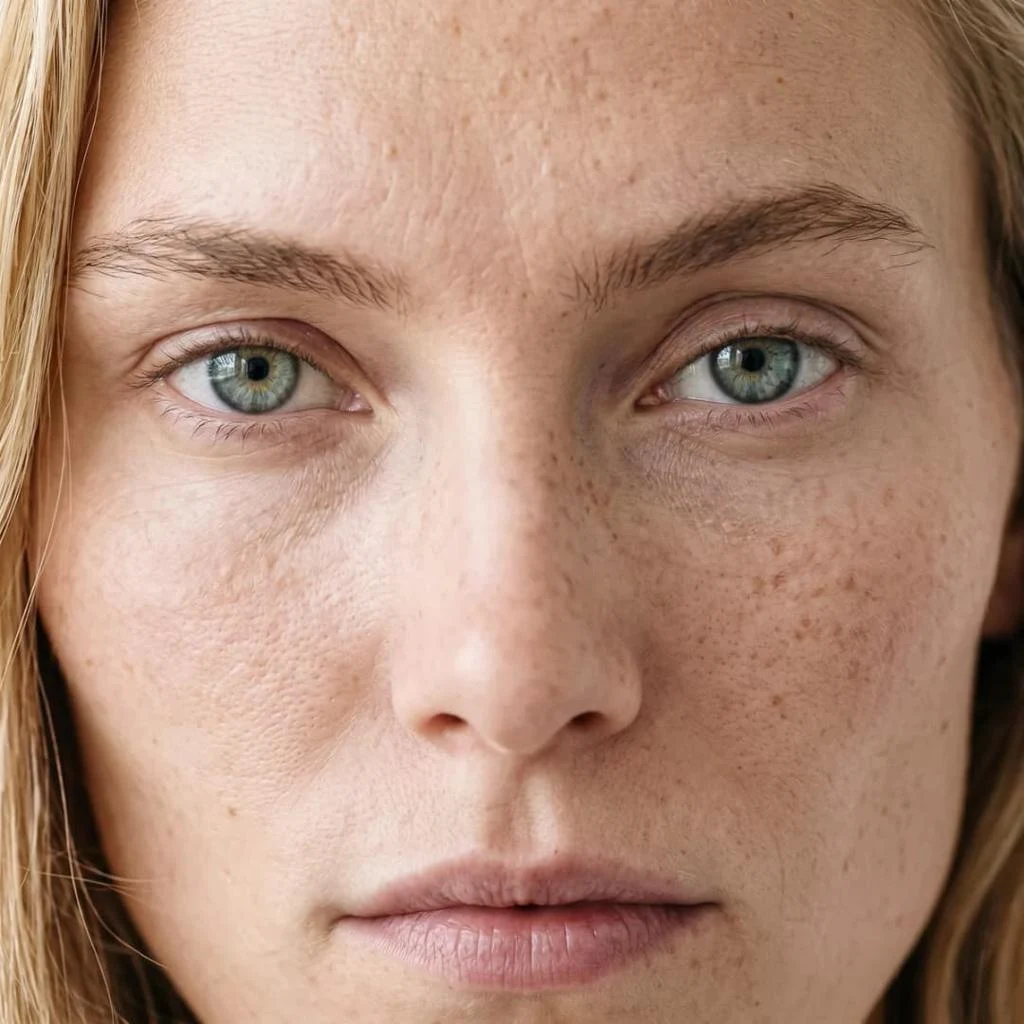
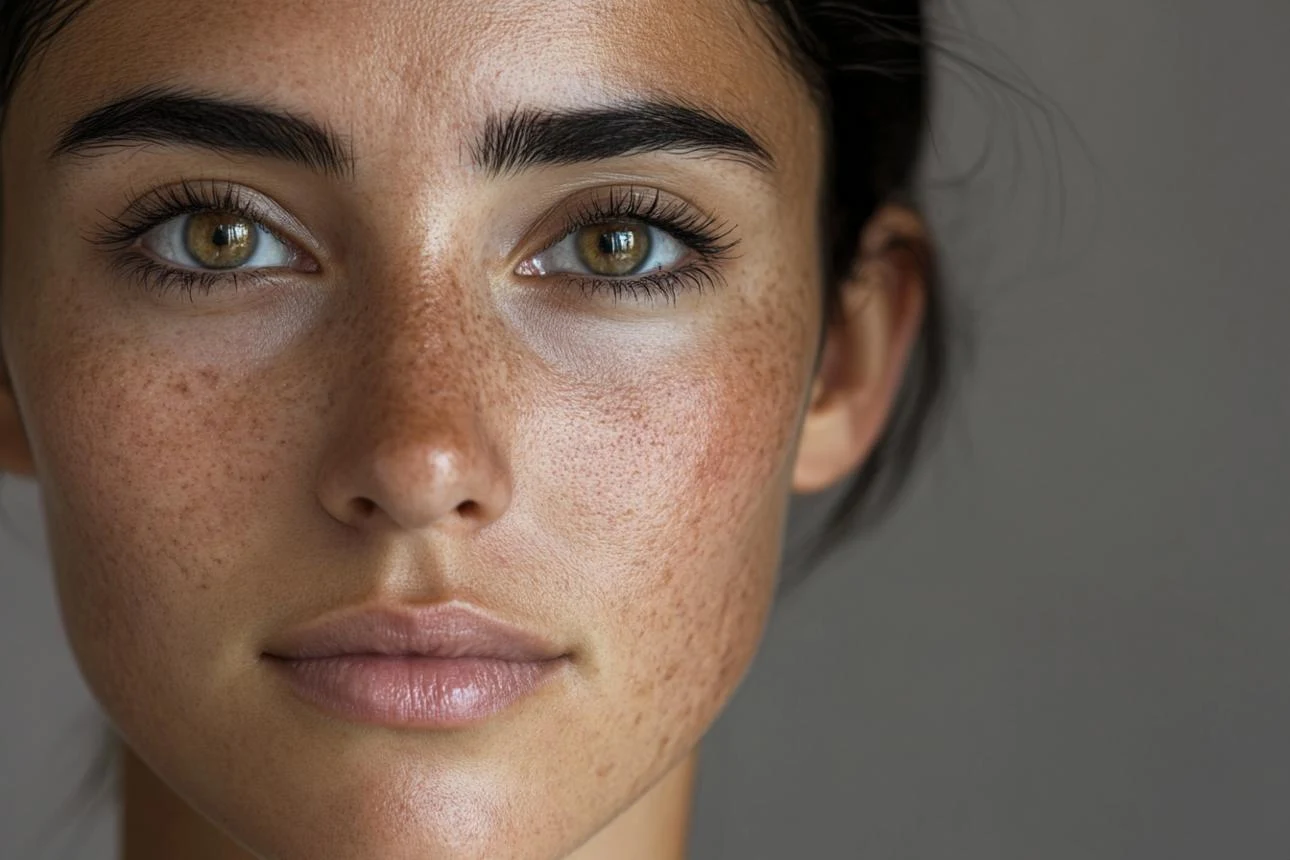
Side-by-side: Over-smoothed waxy AI skin vs authentic natural skin pores and realistic depth.
Problem 1: Skin Looks Like Shiny Wax or a Plastic Doll
Why it happens: Words like “flawless skin”, “glowing beauty”, or “perfect portrait” trigger the AI's beauty filters, wiping away pores and skin texture.
The Fix: Remove all beauty superlatives. Explicitly prompt: “Visible fine skin pores, authentic natural skin texture, subtle micro-imperfections, and soft documentary film lighting. No airbrushing, no plastic smoothing, no beauty filter.”
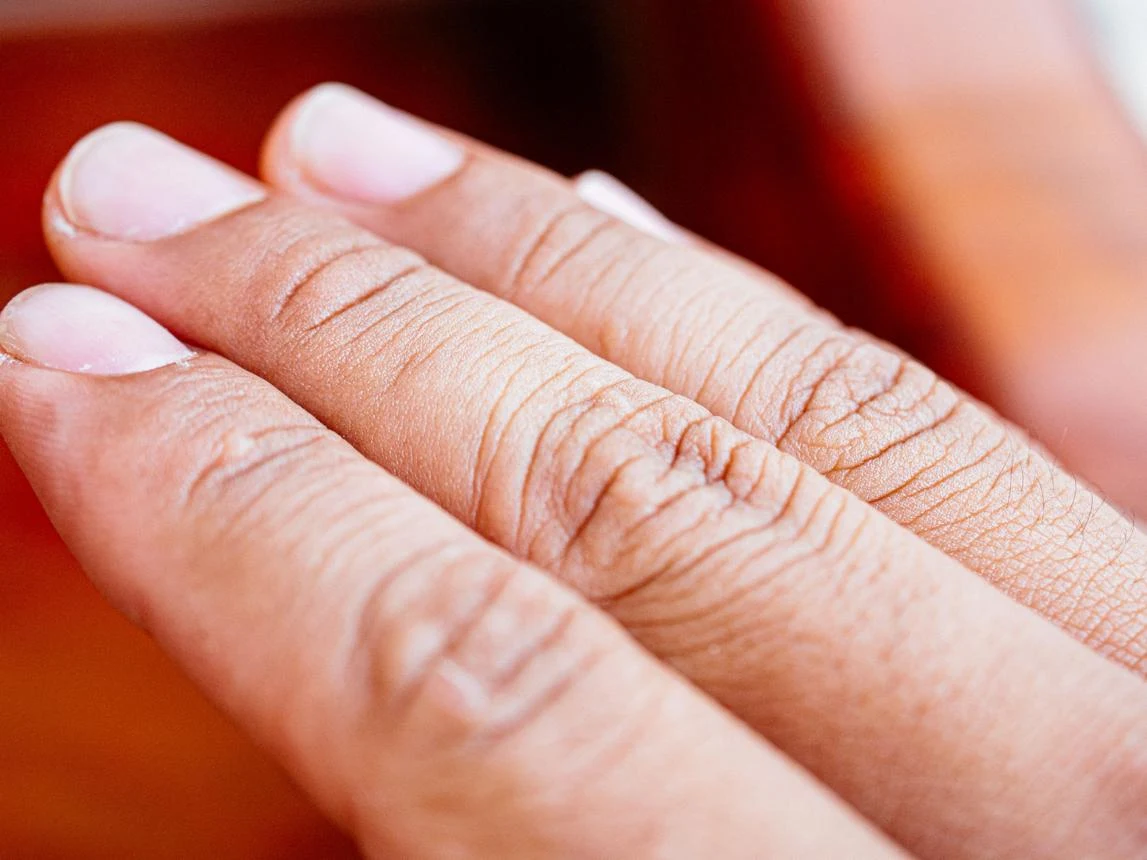
Troubleshooting hand poses: Simplified grips, distinct knuckles, and natural wrist angles.
Problem 2: Distorted Fingers While Holding Lamps or Sparklers
Why it happens: Diffusion models struggle with fine finger interactions when holding thin objects like sparkler wires or delicate clay diya edges.
The Fix: Request simple, relaxed hand postures where the object rests naturally in the palm, or specify: “Anatomically correct hands with five distinct fingers, realistic relaxed wrist posture, and clearly defined knuckles.”
Problem 3: The Face Looks Like a Stranger
The Fix: Re-prompt with stronger negative constraints: “Strictly preserve the reference person's facial geometry, eye shape, nose, and lips. Do not generate a generic model.”
Problem 4: Excessive Orange or Yellow Cast
The Fix: Specify: “Natural warm room ambience with accurate, unmanipulated skin complexions and true-to-life fabric colour balances.”
Step 6: Step-by-Step Practical Routine (6-Phase Execution)
Browse PromptAura
Explore our thematic collections for Diwali, Karwa Chauth, 70s Retro, or Girls portraits, and tap Copy Prompt.
Prepare Your Selfie
Ensure your reference photo is sharp, front-facing, taken in natural light, and free of social media beauty filters.
Upload & Paste in Gemini
Open Google Gemini, tap the paperclip to attach your photo, paste the prompt, and hit enter.
Audit the Output
Check eyes, jawline, fingers, and fabric texture. Do not panic if something is slightly off—conversational editing fixes it.
Apply Follow-up Micro-Prompts
Use Blueprint 3 (Drift Correction) or Blueprint 4 (Hand Repair) in the same chat thread to adjust only what needs fixing.
Download Native High-Res
Download the Full HD generation directly. For Instagram feed posting, ensure it maintains the 4:5 vertical ratio.
Step 7: Privacy, Safety & Under-18 Age Guidelines
When uploading your personal photos to generative AI services, keep these essential safety practices in mind:
Google Gemini has strict child-safety guardrails. If a reference photograph appears to be of a minor (under 18 years of age), the service will frequently refuse to process the face or modify the likeness to protect children's privacy. For family photos with children, use text-to-image concepts or ensure images reflect adult accounts in accordance with platform terms.
Crop out or avoid uploading photos containing visible identity cards, school logos, residential house numbers, or private documents in the background.
Only upload reference photos of yourself or individuals who have given explicit permission to have their likeness edited with generative AI tools.
Frequently Asked Questions (FAQ)
Quick answers to common questions about PromptAura prompts, Google Gemini photo editing, and face preservation:
1. What is PromptAura?▼
PromptAura is an AI prompt discovery resource where users can explore ready-to-use image editing instructions for festivals, couples, traditional fashion, professional portraits, and creative photography concepts.
2. How do I use PromptAura AI photo editing prompts?▼
Choose an image concept from any PromptAura guide, tap the Copy Prompt button, open a compatible multimodal AI editor (such as Google Gemini), upload your clear reference photograph, paste the prompt, and review the generated result.
3. Which AI tool is best for using PromptAura prompts?▼
Google Gemini is currently one of the most capable conversational tools for editing existing uploaded photographs while preserving subject likeness. Microsoft Copilot and other image platforms are also useful depending on your specific editing needs and model availability.
4. How can I keep my original face in an AI-generated photograph?▼
Upload a sharp, front-facing reference photo in natural light, and explicitly instruct the AI to preserve your facial structure, eye shape, nose, lips, natural skin tone, and body proportions. Avoid requesting drastic simultaneous head turns or exaggerated expressions in the first prompt.
5. Why does AI sometimes change my face after editing?▼
Generative diffusion models can reinterpret facial features when asked to dramatically alter camera angles, heavy theatrical lighting, or complex expressions. A focused reference image and explicit negative constraints reduce unwanted changes.
6. Can I use the same PromptAura prompt for different AI tools?▼
Yes. Natural-language prompts work across most multimodal AI image editors. However, because each model has unique training data and weighting, you may make small adjustments to wording for optimal results.
7. Why do AI-generated photographs sometimes have extra fingers?▼
Complex hand interactions (like holding sparklers, delicate diya edges, or intricate bangles) are historically difficult for neural networks. Requesting simple hand positions and specifying 'anatomically correct hands with five distinct fingers' minimizes distortion.
8. How can I create realistic AI photographs for Instagram?▼
Use 4:5 vertical portrait dimensions (1080 × 1350 px) for feed posts, request natural film lighting and authentic skin pores, and avoid excessive beauty smoothing words that trigger plastic-looking filters.
9. Can I use PromptAura prompts without uploading my photograph?▼
Yes. If you simply want to generate a new aesthetic image from scratch without placing yourself into the scene, omit the reference image and describe the subject directly.
10. Are PromptAura prompts free to copy?▼
Yes. PromptAura prompts are 100% free to copy, adapt, and use for personal or creative social media photography.
11. Can I use AI photo editing prompts for family photographs?▼
Yes. When editing family photographs with multiple individuals, upload reference pictures of each person, label them clearly, and describe their relative positions and individual attire.
12. How do I get high-resolution AI photographs?▼
Download the image at the highest available native resolution from your AI tool, ensure your initial reference photo was sharp, and use modern upscaling tools if you plan to print or showcase large format graphics.
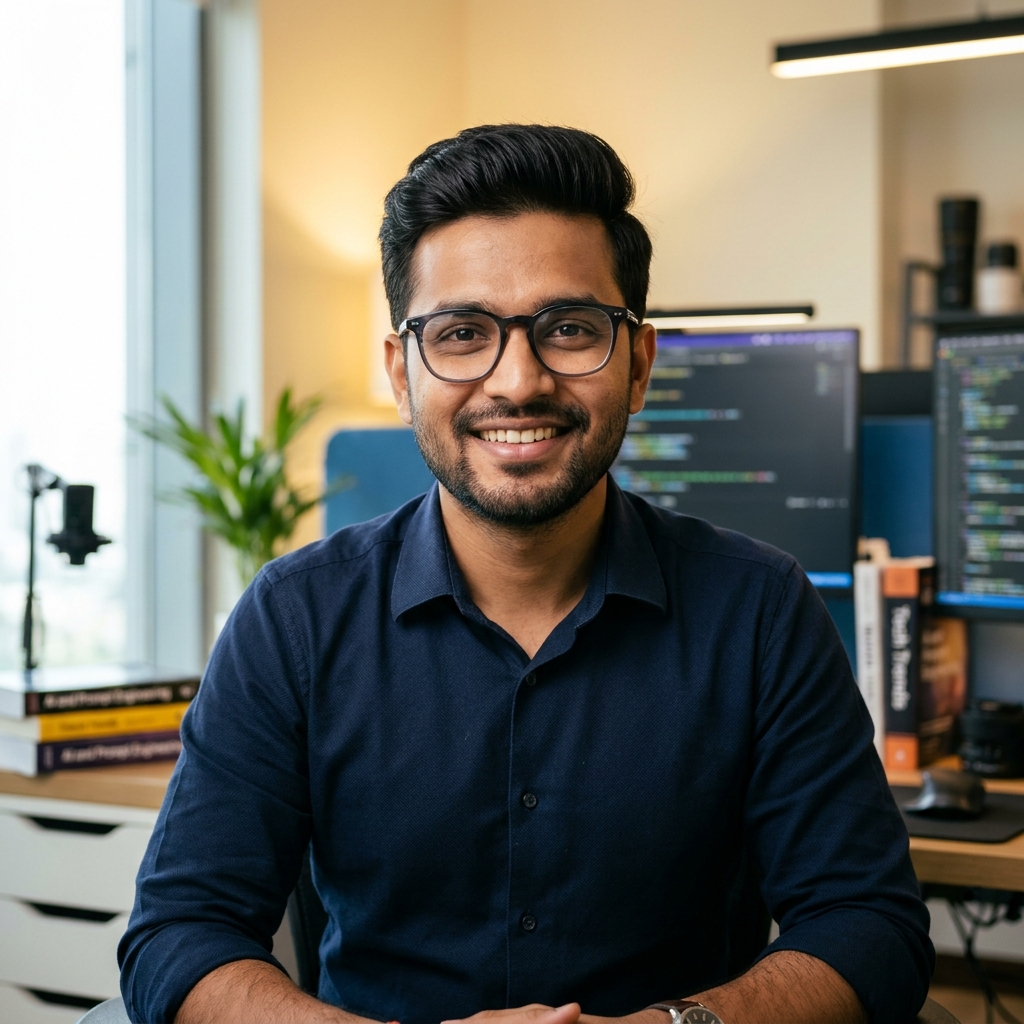
Harish Kumar
Lead AI Prompt EngineerHarish Kumar specializes in multimodal prompt engineering across Google Gemini, Microsoft Copilot, and Nano Banana. His research focuses on preserving authentic human identity, cultural accuracy in traditional Indian festivities, and eliminating generative AI artifacts.
View Full Author Profile & ResearchReady to Create Your First AI Festive Photoshoot?
Explore our hand-curated, copy-paste prompt collections for Diwali couples, traditional girls' fashion, boys' portraits, and 70s retro aesthetics.